Just want to try it? Cobalt runs on any Tungsten T3, loaded from an SD card, without touching the flash. A reset brings back Palm OS 5. The steps are in Try it yourself below.
At the end of Part 1: The ROM that should not exist, Palm OS Cobalt 6.1 was running in an emulator, and I had a verified backup of the T3's ROM. The plan for Part 2 was simple to state: leave the flash alone, load Cobalt from an SD card into the T3's RAM, and jump into it. A reset would bring back Palm OS 5.
It took ten attempts on the real device. This is the story of all ten, including the ones that went wrong because of my own mistakes.
How Cobalt wants to boot
The Cobalt image for the T3 is a 16 MB NOR flash image. It has two parts:
- A boot block at offset 0. It sets up clocks, the memory controller and the GPIO pins, then looks for the OS image.
- The OS image at offset 0x40000, marked with the signature
0xDADAFACEand the version stringPalmOS 6.1.0r21.
The OS image has its own small boot loader, and it is surprisingly helpful. It knows three situations and prints one of three messages:
BootLoader: ROM image is in real ROM (new flavour)
BootLoader: ROM image is in RAM at physical address
BootLoader: ROM image is in RAM pretending to be ROM at 0x0
The third message is the one I wanted. It looks like PalmSource's own development path: load a ROM image into RAM, let the MMU map it to address 0, and start it as if it were in flash.
The details took some disassembling:
- With the MMU off, the boot loader compares its own address with a table of allowed ROM locations. The table allows exactly one: flash at address 0. A copy in RAM fails the check and stops in an endless loop.
- With the MMU on, the boot loader skips that table and uses a fixed configuration. The ROM is expected at physical address 0xA0000000, the very start of the T3's RAM, with 16 MB.
- Cobalt never uses the top megabyte of the 64 MB of RAM. That is a safe place for a loader to keep its own code and page table.
So a loader has to do four things:
- Copy the image to physical address 0xA0000000.
- Build a page table that maps virtual addresses 0 to 16 MB onto that copy.
- Switch the MMU on.
- Jump to virtual address 0x40000, the entry point of the OS image.
A dress rehearsal in the emulator
Before touching the T3, I taught uARM to do the same thing. A new option loads the Palm OS 5 ROM backup of my T3 into the flash, places the Cobalt image in RAM, builds the page table and jumps.
The first try failed. I had put the image at 0xA2000000, and Cobalt crashed as soon as it loaded its own page table. That is how I found the fixed address of 0xA0000000. With the image there, Cobalt booted without a single patch: kernel, all 41 modules, calibration, launcher.
The emulator also showed the limit of this approach. When Cobalt goes to sleep and wakes up again, the XScale CPU restarts at address 0. That is the Palm OS 5 boot loader in flash. It cold-boots Palm OS 5, and Cobalt is gone.
The loader: Cocoboot and a small shim
Writing a Palm OS 5 application that loads 15 MB from an SD card, switches off the operating system and jumps somewhere else is a lot of work. Fortunately, someone did it already. Cocoboot by the Hack&Dev project boots Linux on Palm devices, and it supports the Tungsten T3. It reads a kernel file from the card, turns off interrupts and the MMU, and jumps into the kernel.
I cannot hand it Cobalt directly, so Cocoboot loads a small "kernel" of my own: a shim in ARM assembly, built with Apple's clang. The shim does the four steps above. In its final version, it is 932 bytes.
I rehearsed the hand-over in uARM as well, with the emulator imitating exactly what Cocoboot does before the jump. Cobalt booted. I was ready for the real device.
Ten attempts
Attempt 1: A memory block that cannot exist
The first version used two files: the shim as the kernel, and the full 16 MB Cobalt image as an "initrd", the Linux term for an initial RAM disk. Cocoboot recognized the T3, loaded the shim, and then reported:
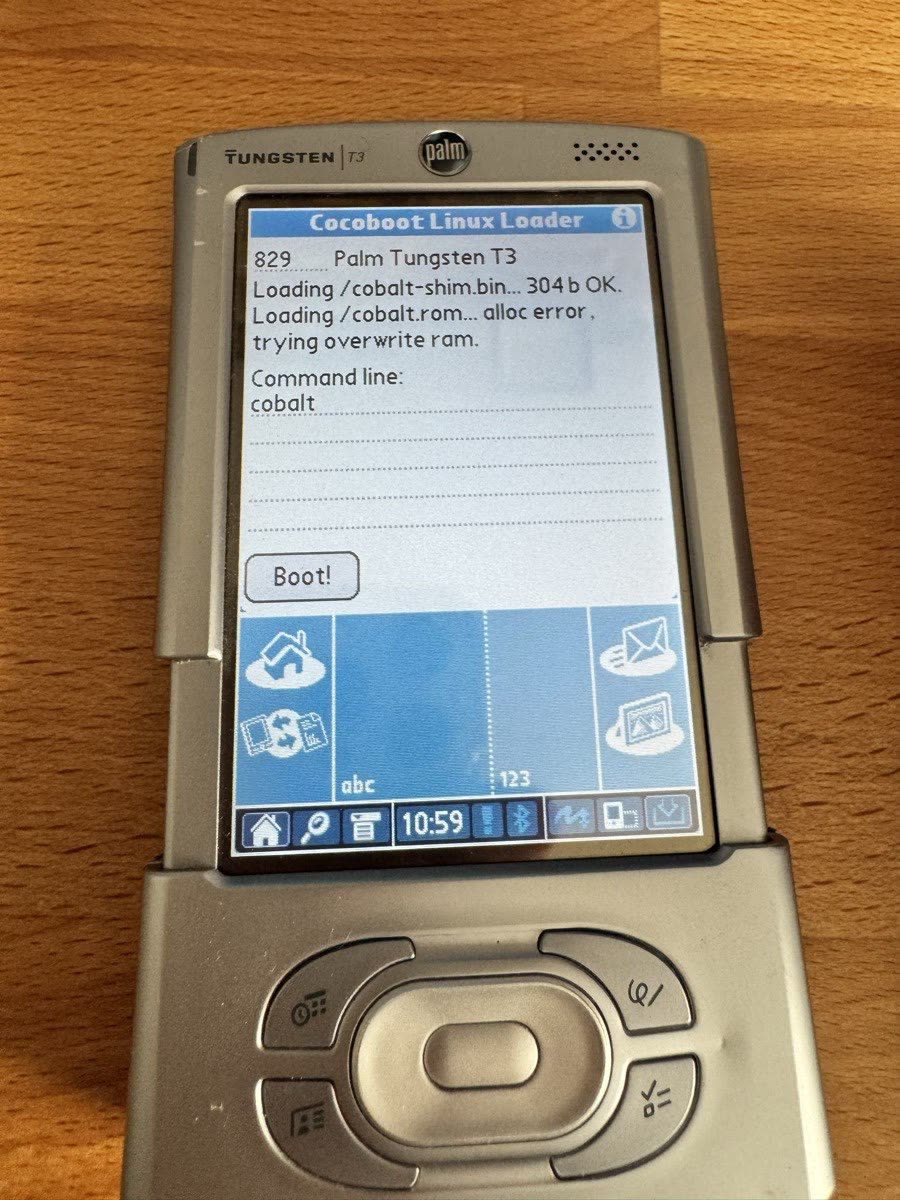
(Fig. 1: "alloc error, trying overwrite ram")
A few seconds later, Palm OS 5 crashed with a fatal error in the Data Manager.
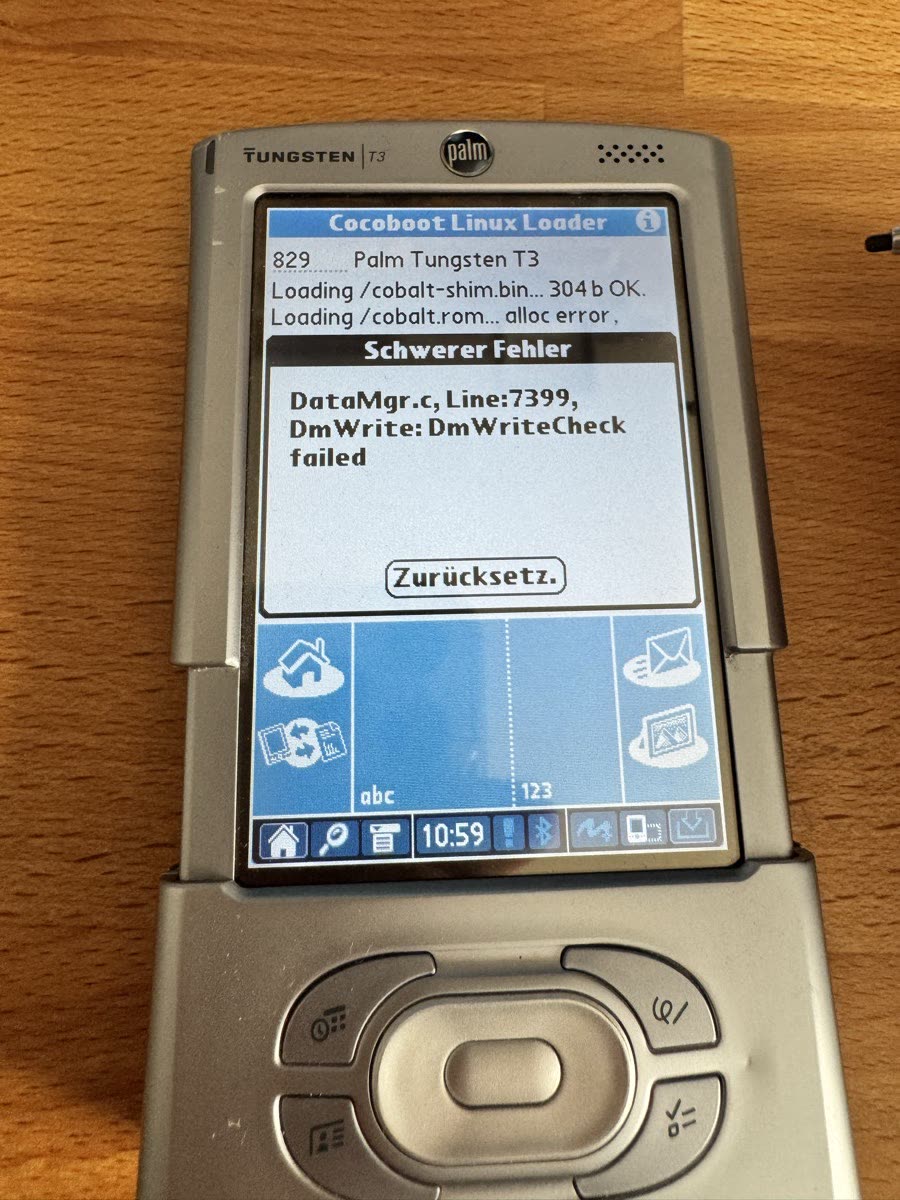
(Fig. 2: DmWriteCheck failed)
The cause is in Cocoboot's source code. Palm OS memory blocks have a 24-bit size field, so a block of exactly 16 MB is impossible. Cocoboot then asks for smaller and smaller blocks, gets one, and still reads the whole file into it. The Data Manager's write check catches the overflow.
The fix was easy. Everything in the Cobalt image after offset 0xEF0000 is empty flash, filled with 0xFF. I cut the file there, at about 15 MB. The shim fills the rest with 0xFF in RAM, so Cobalt sees exactly the same image.
Attempts 2 and 3: Stripes, and a dead reset button
Now Cocoboot loaded everything, said "Boot!", and the screen dissolved into grey stripes and pixel noise.
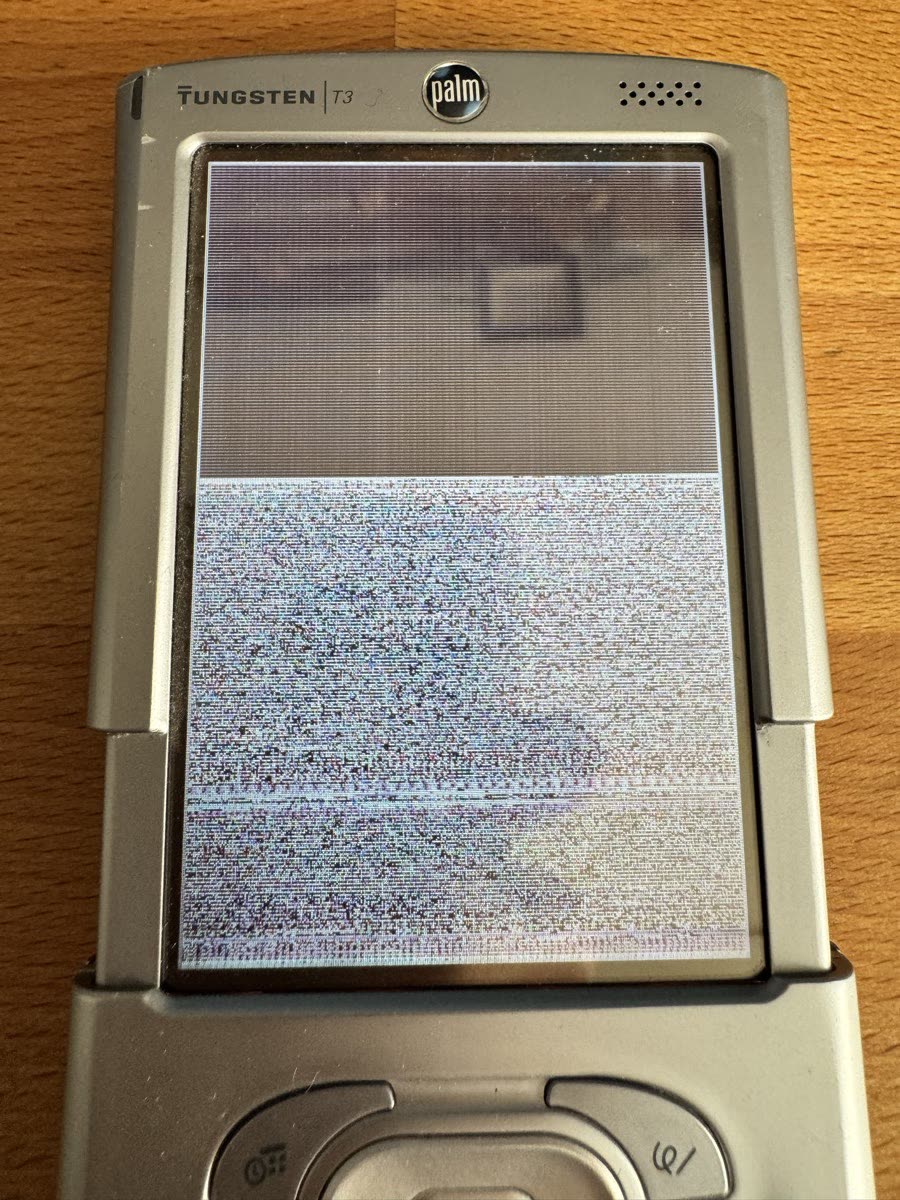
(Fig. 3: Stripes instead of Cobalt)
The noise is the Cobalt image itself. The LCD controller was still showing Palm OS 5's frame buffer, and the shim had just copied Cobalt over it. So the shim had run, at least partly. Cobalt never got as far as setting up the display.
My first theory was about clocks. Right before the jump, Cocoboot switches off the clocks of almost every peripheral: LCD, touch screen, power chip, serial ports. Linux switches them back on. Cobalt does that in its boot block, and I had skipped the boot block. So attempt 3 jumped into the boot block instead.
The screen showed the same stripes. Worse, the reset button no longer worked. On the T3, the reset button is wired to GPIO 1 and only resets the CPU while that pin is set to its "reset" function. Cobalt's boot block switches that function off, and the kernel switches it back on later. If Cobalt hangs in between, the reset button is dead.
That was in the emulator trace from the day before, and I had not thought it through. No harm was done to the flash. I unplugged the battery connector for a moment, and the T3 came back with Palm OS 5. From then on, the shim protects GPIO 1, and the boot block stays skipped.
Attempts 4 to 6: Looking for a signal, and testing the wrong file
The obvious way to see what is going on is the serial port. Cobalt writes a debug log at 115,200 baud, and the shim was extended to send progress marks on all four serial ports of the PXA263. The T3 sat in its serial cradle, connected to the Mac.
I received zero bytes, in this attempt and in all later ones. The level shifter of the T3's serial port is most likely switched on only during a HotSync. So I needed a different signal.
Version 5 of the shim painted the screen in a different color after each step: red, green, blue, yellow, cyan, magenta. Attempt 5 showed no color at all. It took another round to find out why.
The SD card had two partitions, both called "NO NAME". macOS assigns "NO NAME" and "NO NAME 1" in whatever order they happen to mount. My script for preparing the card picked the first new volume and had written versions 5 and 6 to the second partition. The T3 only reads the first one. Attempts 5 and 6 were still testing version 4. From then on, the script picks the partition by its device ID, not by its name.
Attempt 7: A clean white screen
With version 6 finally on the right partition, the result was different: a clean white screen, no noise. The LCD controller was switched off properly, which only the shim does. For the first time, I had proof that my own code ran on the real T3.
(Video: Attempt 7. Cocoboot says "Boot!", and the screen turns clean white instead of dissolving into noise.)
The colors still did not appear. Restarting the LCD controller with my own frame buffer did not work.
Attempts 8 and 9: Counting by backlight
The backlight is a simple PWM output, independent of the LCD controller. Version 7 blinked it once after step 1, twice after step 2, and so on. Version 8 made the blinks longer, so they could be counted in a 10 frames per second video.
(Video: Attempt 9. Each dark phase is a blink of the backlight.)
I measured the brightness of the screen in each video frame. Attempt 9 shows every group:
| Blink group | Time in the video | Step completed |
|---|---|---|
| 1 | 3.3 s | shim started |
| 2 | 6.5 s | shim moved itself to the top megabyte |
| 3 | 13.6 s | Cobalt copied to 0xA0000000 |
| 4 | 19.1 s | page table built |
| 5 | 26.1 s | MMU on, jumping into Cobalt |
The shim worked from start to finish on the real hardware. After the jump, the screen stayed white. Cobalt started and then hung before it got to the display.
What the emulator does not show
The emulator boots the same image through the same shim without any problem. So the difference had to be something uARM does not model. The most likely candidate is the data cache.
Cocoboot switches the XScale's data cache off, but it does not clean it first. Lines that Palm OS 5 had changed are still in the cache, marked as dirty. Early in its start, Cobalt cleans the whole cache. Those old Palm OS 5 lines are then written back to memory, which now holds Cobalt. Linux never notices, because it handles the cache differently when it starts. uARM has no cache at all, so it could never show this.
A second candidate: DMA channels that Palm OS 5 had left running, still writing into memory.
Attempt 10: Palm OS Cobalt on a Tungsten T3
Version 9 of the shim adds two things at the very beginning:
- It discards the data cache without writing it back, drains the write buffer, and clears the instruction cache.
- It stops all 16 DMA channels.
To see in Cocoboot which file it actually loaded, the version went into the file name. The card now carried cobalt-boot-v9.bin.
I started Cocoboot and tapped Boot!. The screen turned white, and the backlight blinked its five groups. After about 40 seconds, the screen came on: first the "Palm Powered" logo, then the touch screen calibration, the first step of Cobalt's setup.
(Video: Attempt 10. Cocoboot says "Boot!", the screen stays white while the backlight blinks, and after about 40 seconds Cobalt shows the "Palm Powered" logo and then the calibration screen.)
After the calibration and the rest of the setup, Cobalt showed its launcher:
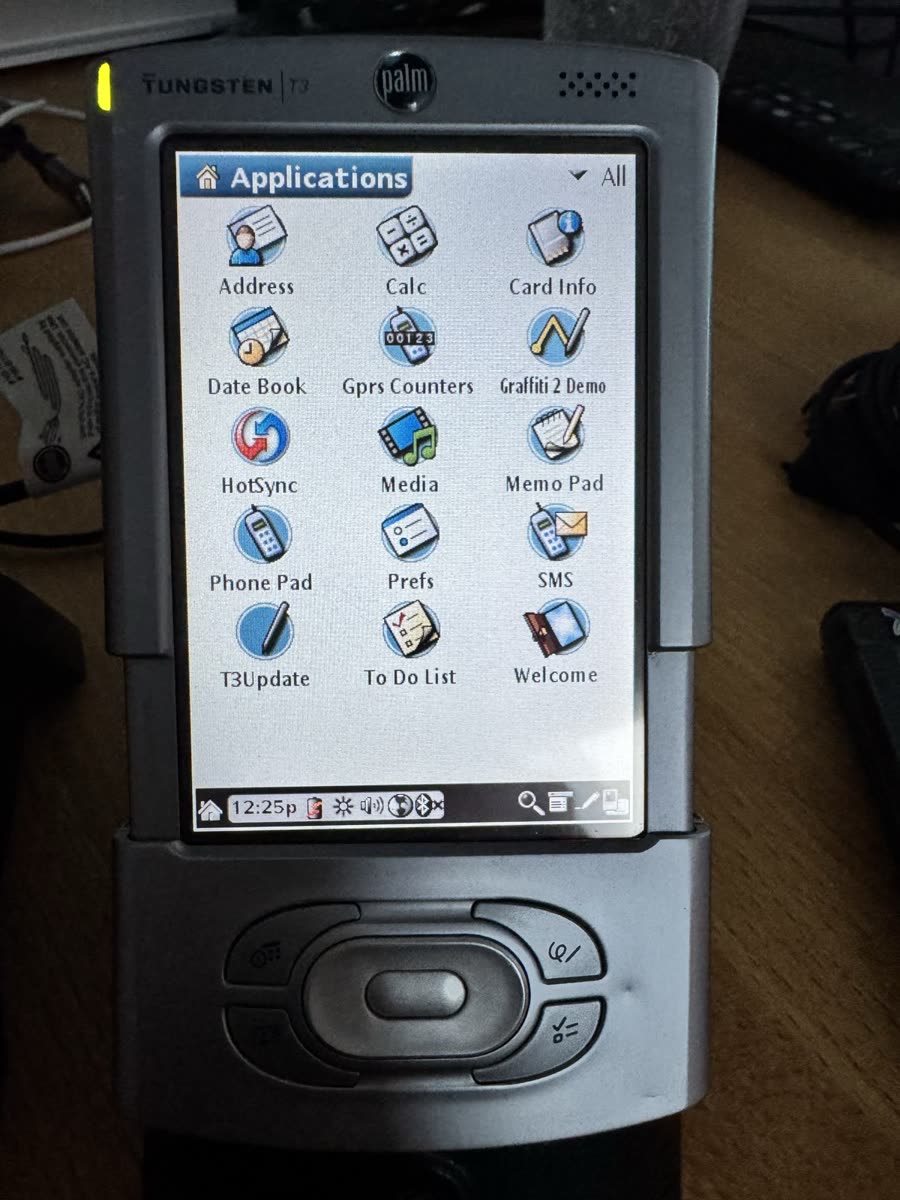
(Fig. 4: After the setup: the Cobalt launcher on the T3)
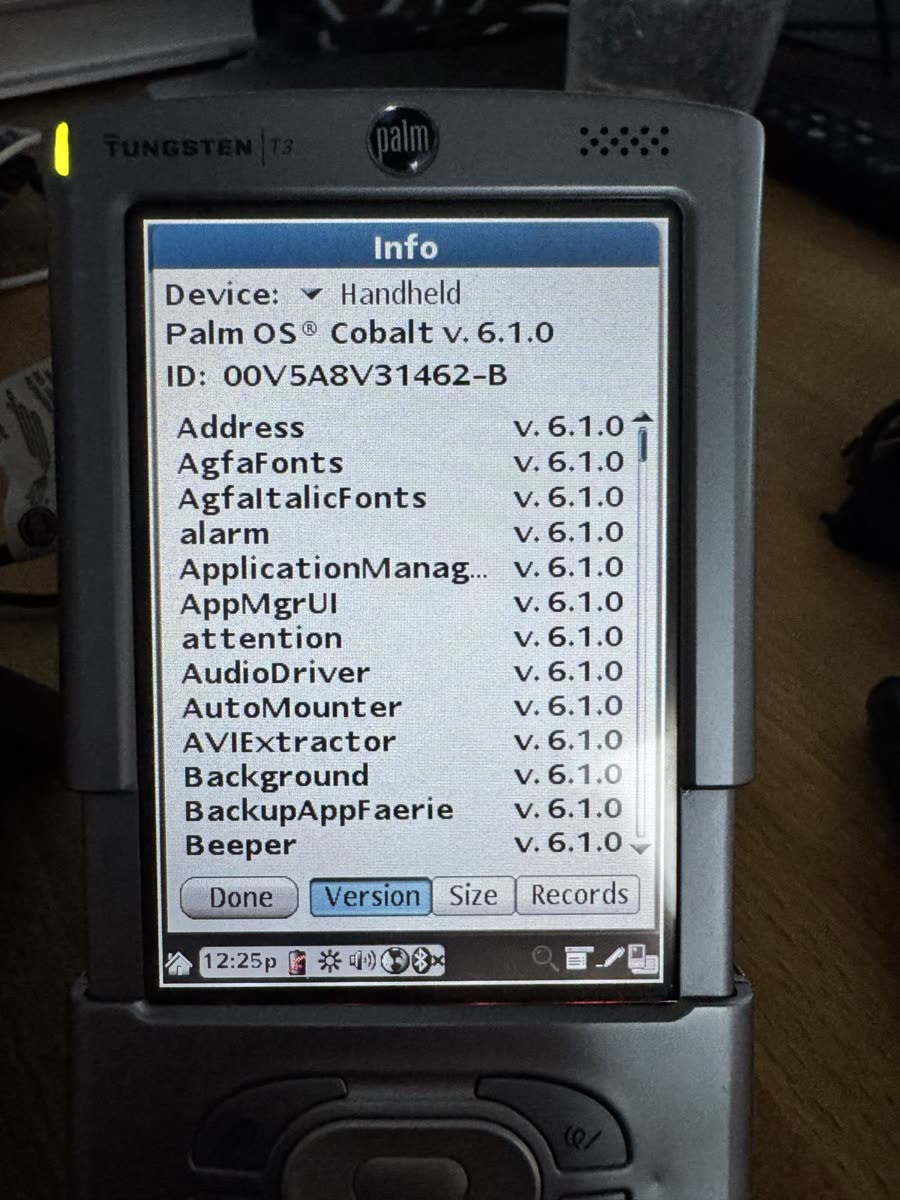
(Fig. 5: "Palm OS Cobalt v. 6.1.0")
Palm OS Cobalt 6.1.0 runs on a real Palm Tungsten T3.
One honest caveat: version 9 changed two things at once. I have not yet tested which of the two made the difference. The cache is the stronger suspect.
What works, and what does not
I tried the first few things right away.
Works:
- The launcher, the built-in applications and the touch screen.
- The status bar with clock, battery, brightness and volume.
- The way back: the reset button starts Palm OS 5 again, after a hard reset.
- Infrared beaming, see the update at the end.
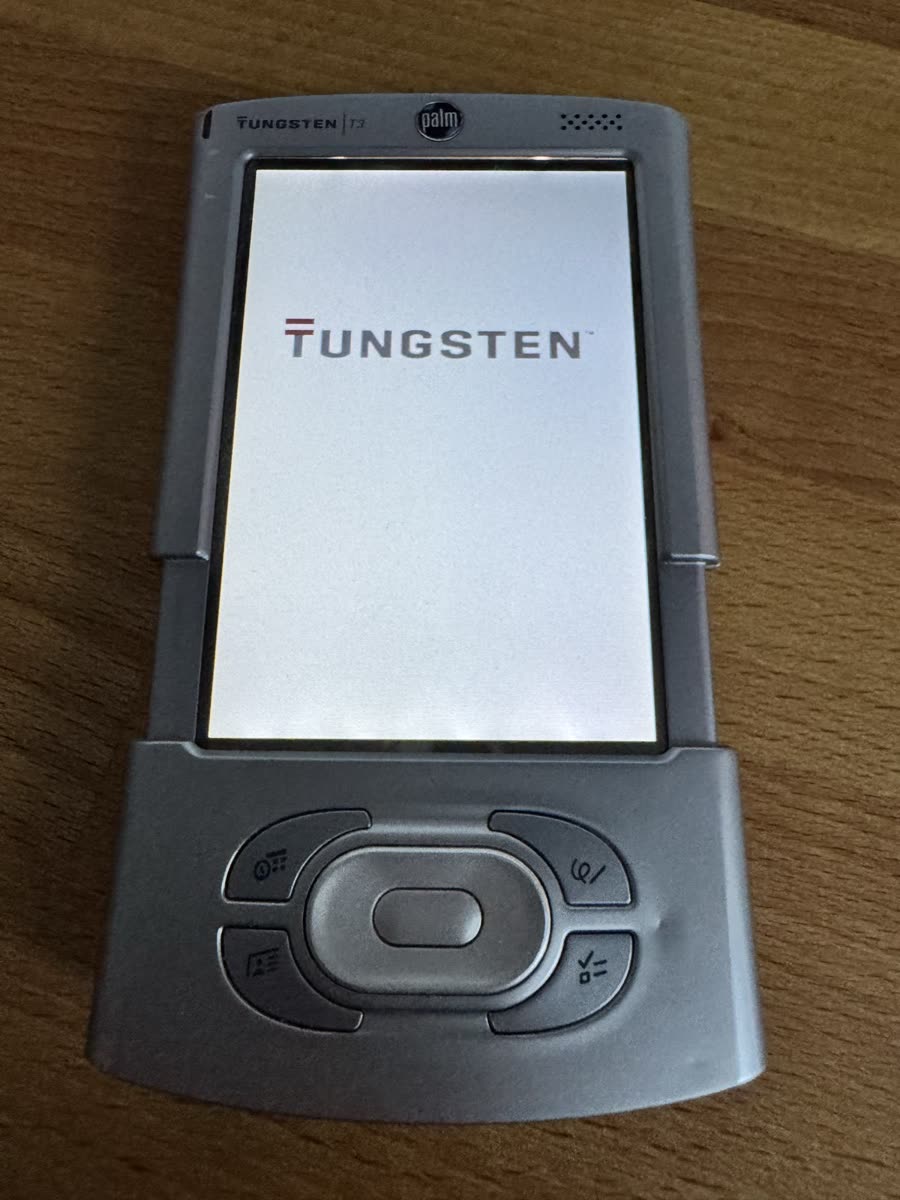
(Fig. 6: After a reset, Palm OS 5 starts again)
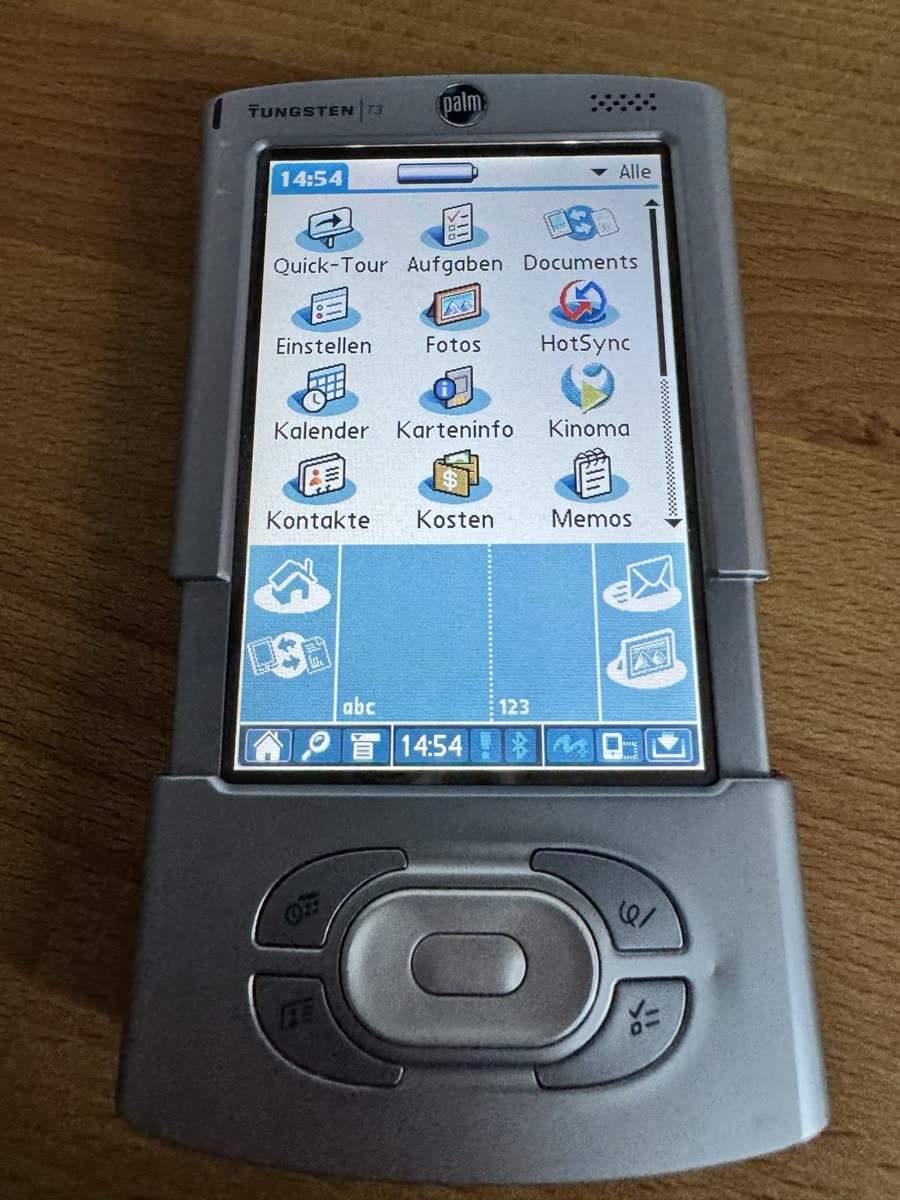
(Fig. 7: Palm OS 5 is back)
Does not work yet:
- SD card. Card Info says "No Card Inserted", although the card is in the slot. As Dmitry Grinberg pointed out on Reddit, the image contains no SD card driver at all.
- Bluetooth. It can be switched on and set to discoverable, but no other device finds the T3.
- Power off. Once Cobalt is switched off, it does not come back. Waking the CPU restarts it at address 0 in flash, which is Palm OS 5's boot loader. I saw the same in the emulator.
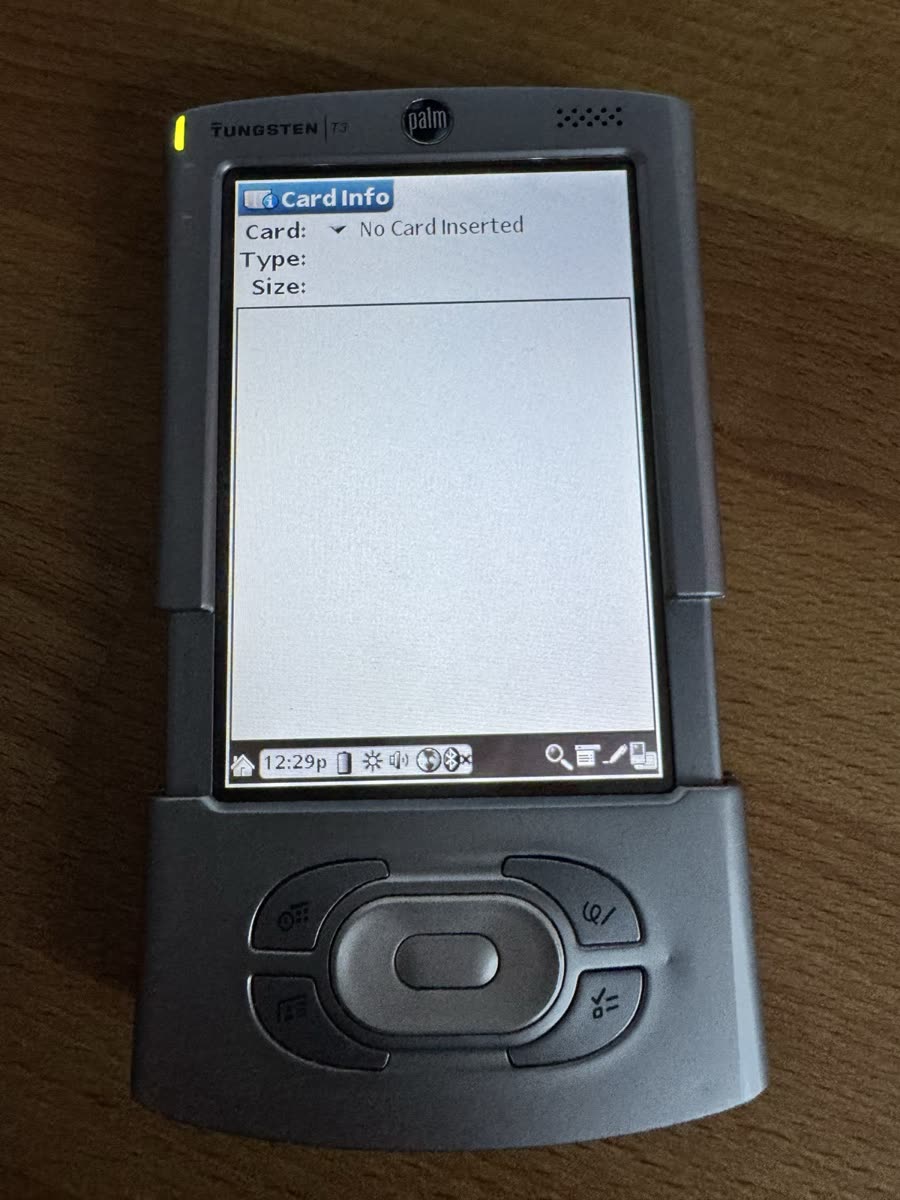
(Fig. 8: Card Info finds no card)
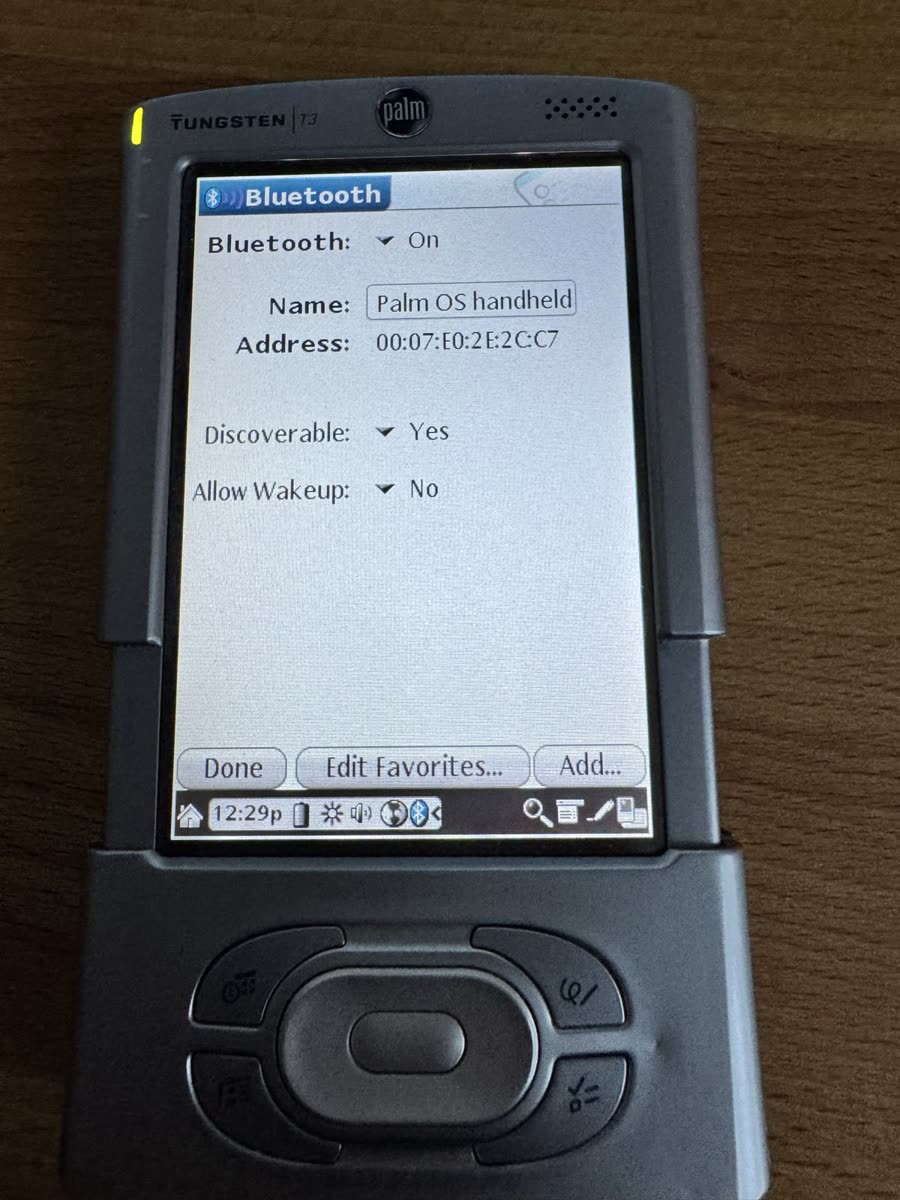
(Fig. 9: Bluetooth, with someone else's address)
A device with someone else's identity
The Info screen shows the device ID 00V5A8V31462-B. That is not the serial number of my T3. The Bluetooth address on the screen, 00:07:E0:2E:2C:C7, is not mine either.
Both values come from the ROM image. A Palm stores its serial number, Bluetooth address and touch screen calibration as "ROM tokens" in a small data block of the flash. Cobalt reads them from its own copy, and that copy came from the T3 on which the image was originally read out. In a way, my T3 now boots with the identity of a T3 that ran Cobalt somewhere around 2004.
This matters for later. If Cobalt ever goes into the flash, the image has to carry this device's own tokens, which I saved in Part 1.
Try it yourself
If you have a Tungsten T3, you can start Cobalt on it yourself. Everything I wrote is free software: the shim, a script that builds the boot file, and step-by-step instructions. You can find it on GitHub: github.com/User7142/TT3-OS6-Cobalt.
Before you start
- All data in the T3's RAM will be lost. Cobalt overwrites the memory of Palm OS 5, and after a reset Palm OS 5 starts with a hard reset. Do a HotSync or a backup first.
- The flash is never written. The reset button brings back Palm OS 5. If it ever does nothing, unplug the battery connector for a moment.
- Not everything works yet. In Cobalt, the SD card, Bluetooth and switching off do not work, as described above. If you switch Cobalt off, press reset and start it again.
- Your T3 will have someone else's identity. The device ID and the Bluetooth address in Cobalt come from the ROM image, not from your device. That is expected and not a mistake in your setup.
- At your own risk. Everything here is provided as is, without any warranty. I accept no liability for damage to your device, lost data or any other harm. Whatever you do with these instructions, you do at your own risk.
What you need
- A Tungsten T3 with its original Palm OS 5.
- An SD card between 32 MB and 1 GB, FAT formatted, with only one partition. The files for the card take about 16 MB, and the T3 is not known to handle cards larger than 1 GB.
- Cocoboot by Hack&Dev. Its source code is on GitHub, but there is no ready-made
cocoboot.prcthere. The one I tested is part of the T5 package on the Palm Linux page of palmdb.net: int5.zip, taket5/tt5-hires-kernel/PALM/Launcher/cocoboot.prc. It runs on the T3 as well. Its SHA-256 is6daf7108aa05bb8c38fb5d2fe7f7c3b8ec53a0c6981c2ce754970050f2fcc1c1. - The Cobalt ROM image. I do not host it myself. palmdb.net has it in its collection Palm OS Device ROMs, in the Tungsten section, as
Palm-Tungsten-T3-Cobalt-nor.bin(16 MB). The image is copyrighted by ACCESS Co., Ltd., the successor of PalmSource. - Python 3 on any computer.
The script accepts exactly one image and recognises it by its SHA-256. The file name does not matter:
49d4008780831a4c024a9ead2f07adfb81f113cfcea248c51c49652fb0da3389
The file from palmdb.net has exactly this checksum. It is also listed among the tested images in the README of uARM.
Step by step
- Build the boot file:
python3 make-cobalt-boot.py Palm-Tungsten-T3-Cobalt-nor.bin. The script checks the image, puts the shim in front of it and writescobalt-boot.binandcocoboot.confinto the foldersdcard. It should report "Matches the tested cobalt-boot.bin". The boot file is then identical, byte for byte, to the one that booted on my T3. - Copy both files to the root of the SD card, and
cocoboot.prcto/PALM/Launcher/. - Put the card into the T3, start Cocoboot from the launcher and tap Boot!. Cocoboot reports that
/initrd.gzwas not found. That is expected. - Wait. The screen turns white, and the backlight blinks in five groups. After about 40 seconds, the "Palm Powered" logo appears.
- Cobalt starts with its setup: calibrate the screen by tapping the targets, then go through the remaining steps. In the emulator, Cobalt first asked to erase all data. On my T3 it never did. If it asks on yours, confirm with Yes.
The README on GitHub explains the steps in more detail and helps with the problems I ran into.
Lessons from ten attempts
- An emulator without caches hides cache bugs. Every attempt ran perfectly in uARM. The last missing piece only exists on real silicon.
- Find a signal before you need it. The serial port stayed silent the whole time. A blinking backlight turned a white screen into a timeline.
- Check what you actually tested. Two attempts were wasted on the wrong partition, and the conclusions drawn from them were wrong.
- Know how to get out. A dead reset button is scary. Knowing that the flash had never been touched made it a five-minute problem.
What's next
Cobalt now starts from RAM, and a reset returns to Palm OS 5. The next goal is a Cobalt that can be used every day:
- Get the SD card working. The image has no driver for it, so one would have to be written.
- Find out whether the Bluetooth chip answers at all.
- Make power off and on work, which means getting the wake-up path past Palm OS 5's boot loader.
- Check which of the two fixes in version 9 is the real one.
Update, 11 October 2026: Infrared beaming works
After this article went online, Reddit user scienceapps asked: "It can be done over IR?" Good point: as long as the SD card does not work, infrared beaming would be a way to get applications onto Cobalt. So I tried it.
It works. I beamed the game Froggy from a LifeDrive to the T3 running Cobalt. Cobalt received it, and the game runs.
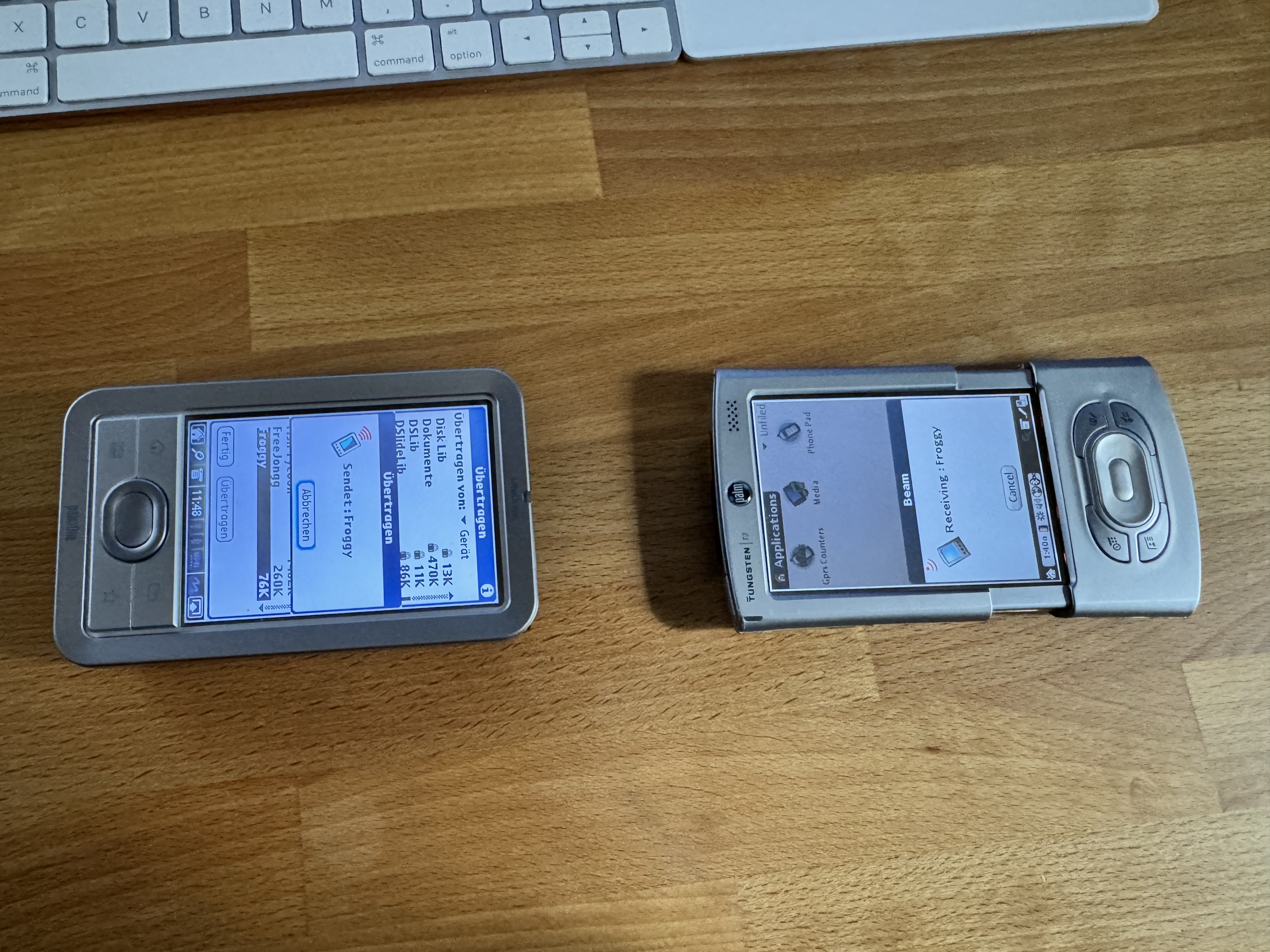
(Fig. 10: The LifeDrive on the left sends Froggy, the T3 with Cobalt on the right receives it)
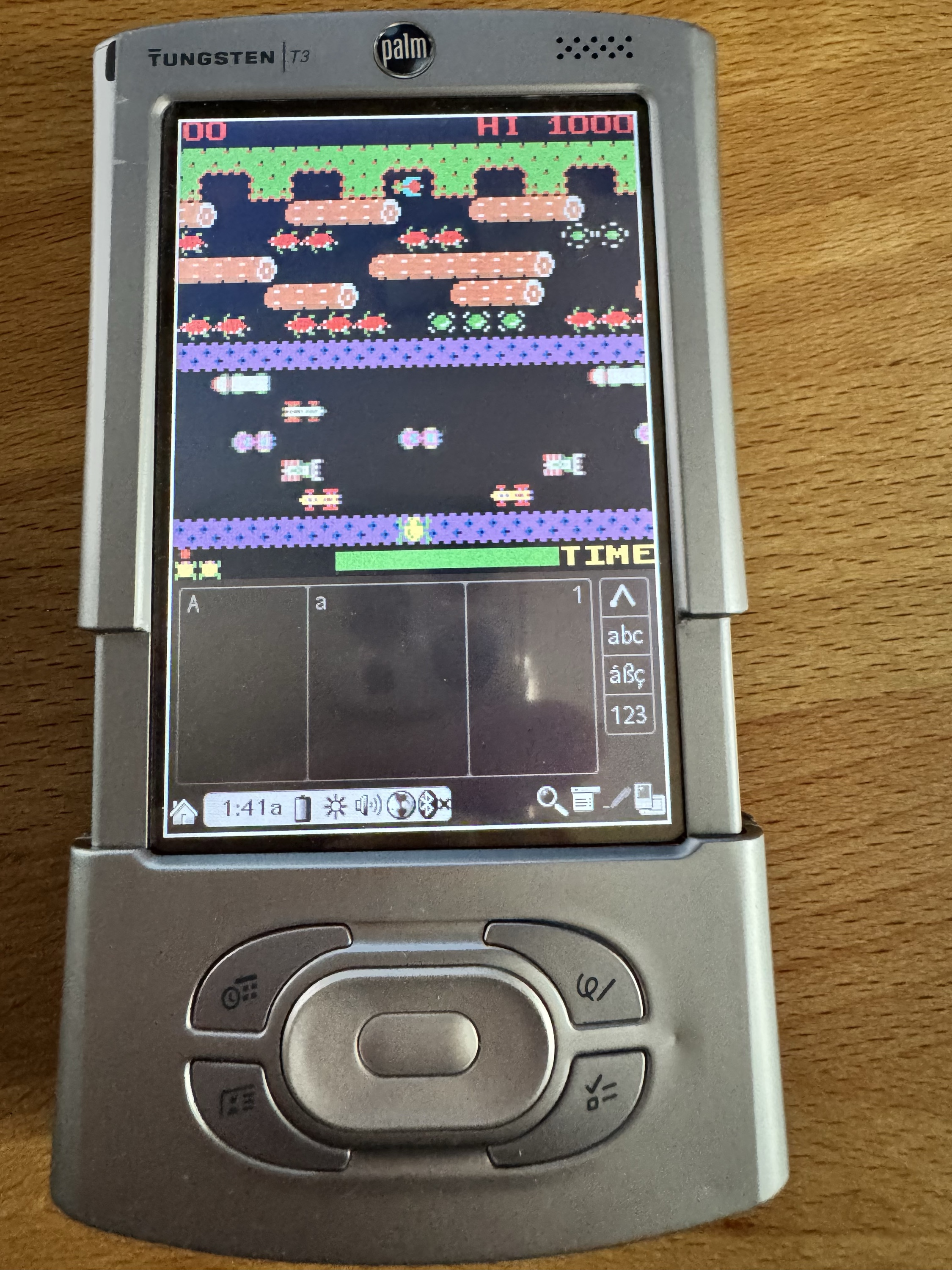
(Fig. 11: Froggy running on Palm OS Cobalt)
Thanks to scienceapps for the idea!
Thanks and links
- Hack&Dev for Cocoboot, which made the hard part of this possible.
- Dmitry Grinberg for uARM: https://github.com/uARM-Palm/uARM
- palmdb.net for keeping all of this downloadable.
- Reddit user scienceapps for the idea to try infrared beaming.
Comments on "Palm OS 6 Cobalt on a Tungsten T3, Part 2"
Comments are moderated before publication. Only substantive and constructive comments will be approved.