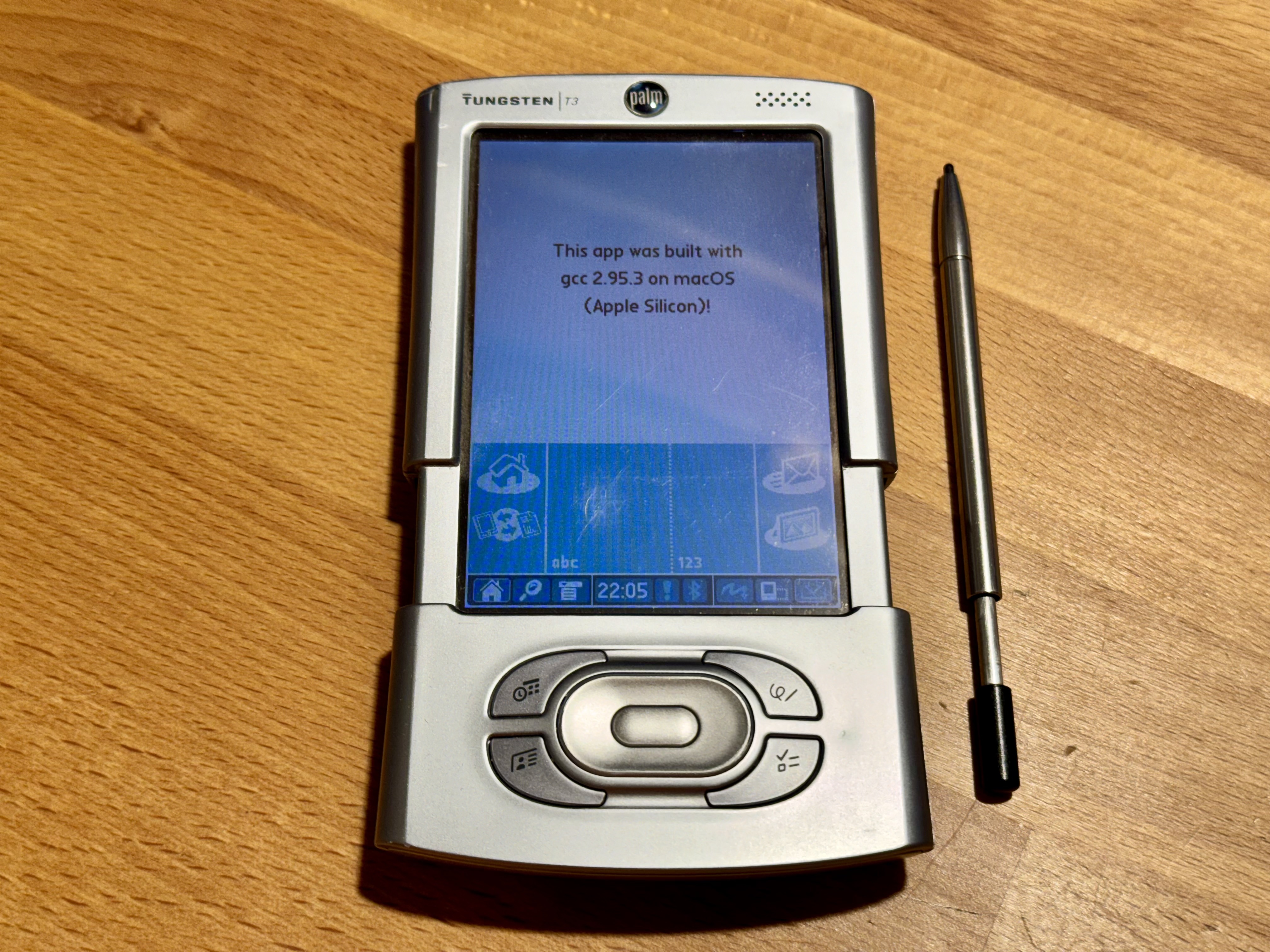
(Fig. 1: HelloWorld application built on macOS Apple Silicon, running on a Palm Tungsten T3)
Setting up a Palm OS development environment has always been a challenge. Most guides and tools were written for Linux (specifically Ubuntu) or Windows. For macOS users on Apple Silicon (M1/M2/M3/M4/M5), there was no straightforward way to compile Palm OS applications — until now.
This article describes how to set up a complete Palm OS development environment on macOS ARM (Apple Silicon). It is based on savaughn's palmdev-macos toolchain for Palm OS 4 (68K), extended with a dual-target build system, PEAL (Palm Executive ARM Loader), and templates for building native Palm OS 5 (ARM) applications.
If you are looking for a way to build Palm OS applications on Ubuntu 20.04, have a look at this article.
Shortcut
I packed everything needed for building Palm OS applications into a single zip file. No installation, no Homebrew, no sudo required — just unpack and build.
Download the complete toolchain for macOS ARM (Apple Silicon) (~17 MB)
The source of the toolchain is also available on GitHub, as a fork of savaughn's project: github.com/User7142/palmdev-macos
After downloading, unpack the zip file and build the included Hello World example:
unzip 46-file-70bb336d-cf55-4152-9a3e-57bf0cca79ac-palmdev-macos-arm-v1.zip
cd palmdev-macos-arm-v1/helloworld
make build
Output: build/HelloWorld.prc — ready to install on any Palm device or emulator.
macOS Security Note: On first run, macOS may block the toolchain binaries with a "cannot be opened because the developer cannot be verified" warning. To allow them, run this once from the unpacked directory:
xattr -r -d com.apple.quarantine toolchain/ tools/ peal/
What's in the Zip
toolchain/ |
Cross-compilers: m68k-palmos-gcc (68K), arm-palmos-gcc (ARM), build-prc |
sdk/ |
Palm OS SDK 4.0 and 5r3 (headers and libraries) |
peal/ |
Palm Executive ARM Loader (for native ARM apps on Palm OS 5) |
tools/ |
pilrc — the Palm OS Resource Compiler |
templates/ |
Makefile and source templates for both Palm OS 4 and 5 |
helloworld/ |
Working example application, ready to build |
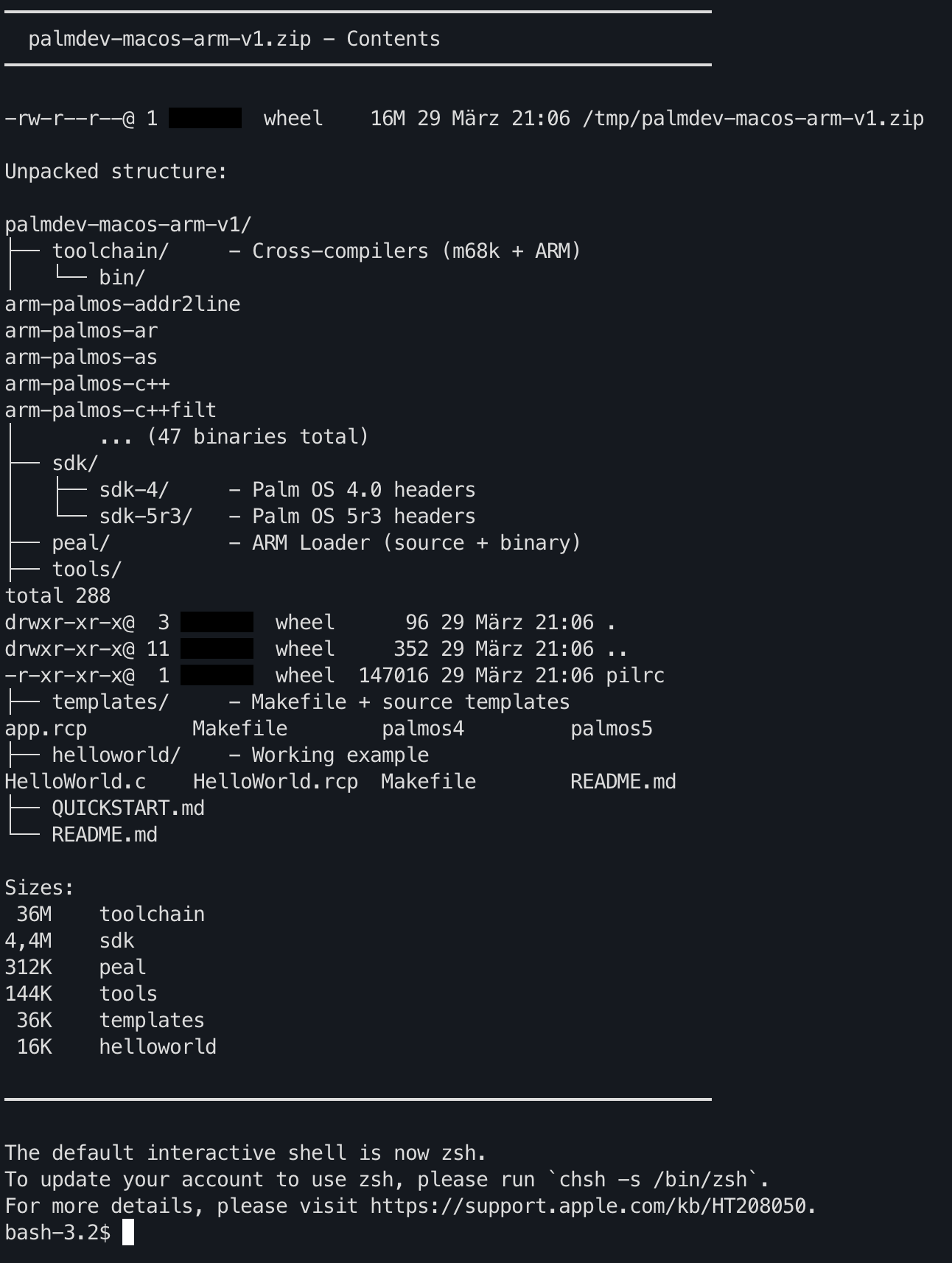
(Fig. 2: Contents of the palmdev-macos-arm ZIP file)
Creating Your Own Application
Create a new project directory inside the unpacked toolchain folder and copy the template files:
# Inside the unpacked palmdev-macos-arm-v1/ directory:
mkdir myapp
cd myapp
# Copy the dual-target Makefile and resource template
cp ../templates/Makefile .
cp ../templates/app.rcp .
# For a Palm OS 4 app (pure 68K):
cp ../templates/palmos4/main.c .
make build
# For a Palm OS 5 app (native ARM):
cp ../templates/palmos5/main_arm.c .
cp ../templates/palmos5/stub_m68k.c .
cp ../templates/palmos5/pace.h .
make build TARGET=palmos5
Then edit the Makefile header to set your application name and creator ID:
APP_NAME    = MyApp
CREATOR_ID  = MyAp
The Makefile automatically finds all tools relative to your project directory. Your project must sit one level inside the toolchain folder (e.g., palmdev-macos-arm-v1/myapp/). If you need a different layout, adjust the REPO_DIR variable at the top of the Makefile.
Requirements
- macOS 11+ (Big Sur or later)
- Apple Silicon (M1, M2, M3, M4, M5)
- ~40 MB disk space
That's it. No Homebrew, no Xcode Command Line Tools, no sudo. Everything runs from the unpacked directory.
Optional: To install applications on a real Palm device via USB, you will need pilot-link. This is the only external dependency and only needed for device communication, not for building:
brew tap jichu4n/palm-os
brew trust --formula jichu4n/palm-os/pilot-link
brew install pilot-link
Since Homebrew 6, formulae from third-party taps have to be trusted explicitly, hence the brew trust line. How to build the current pilot-link from source is described in the HotSync article.
Note: These pre-built binaries are for macOS ARM (Apple Silicon) only. For Intel Macs, the existing Homebrew packages already work.
What's in the Toolchain
The zip file contains the following components, all pre-built for macOS ARM:
- prc-tools-remix — Pre-built GCC cross-compilers for Palm OS, originally from savaughn's prc-tools-remix:
m68k-palmos-gcc(version 2.95.3-kgpd) — compiles C code for Palm OS 4 (68K)arm-palmos-gcc(version 3.3.1) — compiles C code for Palm OS 5 (ARM)build-prc— packages compiled binaries and resources into.prcfiles
- pilrc — The Palm OS Resource Compiler. Turns textual descriptions of forms, menus, and alerts into binary resources.
- Palm OS SDK 4.0 and 5r3 — Headers and libraries, from jichu4n/palm-os-sdk
- PEAL — Palm Executive ARM Loader for native ARM apps on Palm OS 5, originally from Greg Parker's TCPMP project
- peal-postlink — Converts ARM ELF binaries into Palm OS
armcresources - Dual-target Makefile template — Build for Palm OS 4 or 5 with a single command
- Source templates — Ready-to-use starting points for both 68K and ARM applications
A Note on Creator IDs
Every Palm OS application needs a unique four-character Creator ID (like HlWd or MyAp). This ID was used by Palm OS to associate an application with its databases, preferences, and saved data. Two applications with the same Creator ID would interfere with each other.
Back in the day, Palm Inc. maintained a registration system where developers could reserve their Creator IDs to avoid conflicts. That system no longer exists. For hobby development and retro projects today, just pick something unique and avoid well-known IDs like memo, addr, or date (which belong to the built-in applications). A good approach is to use a mix of upper and lowercase letters that is unlikely to collide, for example derived from your app name.
Building a Palm OS 4 Application (68K)
Building a Palm OS 4 application is straightforward. The included HelloWorld example demonstrates the basics. Let's look at the source code first.
HelloWorld.c
#include <PalmOS.h>
UInt32 PilotMain( UInt16 cmd, void *cmdPBP, UInt16 launchFlags )
{
    EventType event;
    if (cmd == sysAppLaunchCmdNormalLaunch) {
        //  Display a string.
        WinDrawChars( "Hello, world!", 13, 55, 60 );
        //  Main event loop:
        do {
            //  Doze until an event arrives.
            EvtGetEvent( &event, evtWaitForever );
            //  System gets first chance to handle the event.
            SysHandleEvent( &event );
        } while (event.eType != appStopEvent);
    }
    return 0;
}
Every Palm OS application has a PilotMain() function as its entry point — similar to main() in standard C, but with Palm OS-specific parameters. The event loop is the heart of every Palm OS application: it waits for events, lets the system handle them, and exits when the user closes the app.
HelloWorld.rcp
/*
 * HelloWorld Resource File
 */
#define MainForm 1000
FORM ID MainForm AT (0 0 160 160)
USABLE
BEGIN
    TITLE "HelloWorld"
END
The .rcp file defines the application's user interface resources. PilRC (PILot Resource Compiler) compiles this textual description into binary resources that are included in the final .prc file. You define forms, buttons, labels, menus, alerts, and bitmaps here.
Building
cd helloworld
make build
The build process is:
m68k-palmos-gcccompiles.csources to.oobject filesm68k-palmos-gcclinks the object files into an ELF binarypilrccompiles the.rcpfile into.binresourcesbuild-prcpackages the ELF binary and resources into the final.prcfile
Output: build/HelloWorld.prc — about 945 bytes, ready for any Palm device.
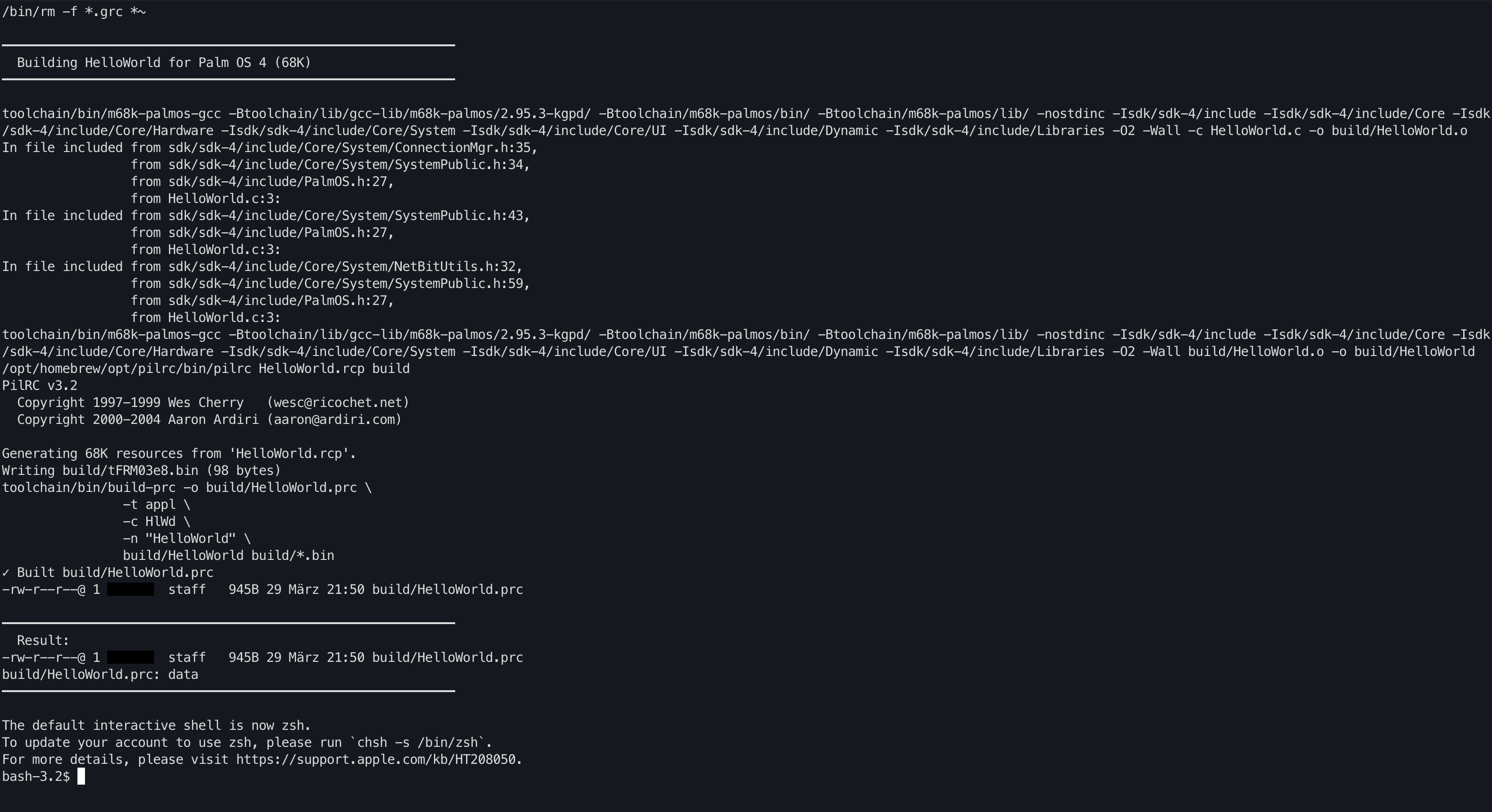
(Fig. 3: Terminal output of make build for Palm OS 4 (68K))
The Makefile
The key to making this work without modifying system files is the -B flag. It tells GCC exactly where to find the assembler, linker, and libraries — locally, without needing sudo or system-wide installation:
CC = $(TOOLCHAIN_DIR)/bin/m68k-palmos-gcc
CFLAGS = -B$(TOOLCHAIN_DIR)/lib/gcc-lib/m68k-palmos/2.95.3-kgpd/ \
         -B$(TOOLCHAIN_DIR)/m68k-palmos/bin/ \
         -B$(TOOLCHAIN_DIR)/m68k-palmos/lib/ \
         -nostdinc \
         -I$(SDK_DIR)/include \
         -I$(SDK_DIR)/include/Core \
         -I$(SDK_DIR)/include/Core/Hardware \
         -I$(SDK_DIR)/include/Core/System \
         -I$(SDK_DIR)/include/Core/UI \
         -I$(SDK_DIR)/include/Dynamic \
         -I$(SDK_DIR)/include/Libraries \
         -O2 -Wall
The -nostdinc flag is critical: it prevents macOS system headers from conflicting with the Palm OS headers. Without it, you will get strange compilation errors because the compiler tries to mix modern macOS headers with 20-year-old Palm OS definitions.
You will also notice GCC_EXEC_PREFIX being set in the Makefile:
export GCC_EXEC_PREFIX = $(TOOLCHAIN_DIR)/lib/gcc-lib/
This environment variable tells GCC where to find its internal support files (specs, libraries, compiler passes). Without it, GCC would look in the default system paths and fail because the Palm OS cross-compiler files are installed locally, not system-wide.
Building a Palm OS 5 Application (ARM)
This is where it gets interesting. Palm OS 5 devices (like the Tungsten T3 or Treo 650) have ARM processors, but Palm OS itself still runs on a 68K emulator called PACE (Palm Application Compatibility Environment). To run native ARM code, you need a special loader that bridges the two architectures.
That loader is PEAL — the Palm Executive ARM Loader, originally developed by Greg Parker for the TCPMP media player project.
How ARM Apps Work on Palm OS 5
A Palm OS 5 ARM application consists of three layers:
- 68K Stub — The entry point that Palm OS loads. It detects the ARM processor, loads the ARM binary via PEAL, and transfers control to it.
- ARM Binary — Your actual application, compiled as native ARM code and packed into
armcresources by thepeal-postlinktool. - PACE Wrappers — Since ARM code cannot directly call Palm OS API traps (which are 68K instructions), every API call goes through a wrapper that calls back into the 68K emulator.
The performance benefit is significant: native ARM code runs roughly 10x faster than the same code emulated through the 68K layer. This is essential for applications that need real-time performance, like audio synthesizers or games.
Creating a Palm OS 5 Project Step by Step
Here is a complete walkthrough for creating a new Palm OS 5 application from scratch. We assume you have unpacked the zip file and are inside the toolchain directory.
Step 1: Create a project directory inside the toolchain folder:
mkdir myapp
cd myapp
Step 2: Copy the template files:
# Dual-target Makefile (supports both Palm OS 4 and 5)
cp ../templates/Makefile .
# Resource file (UI definitions)
cp ../templates/app.rcp .
# Palm OS 5 ARM source files
cp ../templates/palmos5/main_arm.c .
cp ../templates/palmos5/stub_m68k.c .
cp ../templates/palmos5/pace.h .
Step 3: Edit the Makefile header to configure your application:
APP_NAME    = MyApp
CREATOR_ID  = MyAp
RESOURCES   = app.rcp
ARM_SOURCES = main_arm.c
The Makefile auto-detects the toolchain path relative to your project directory. It assumes your project is one level inside the toolchain folder (e.g., palmdev-macos-arm-v1/myapp/). If you place your project elsewhere, adjust the REPO_DIR variable at the top of the Makefile.
Step 4: Check that your app.rcp contains an alert resource at ID 1100. The 68K stub uses FrmCustomAlert(1100, ...) to display error messages (e.g., when no ARM processor is found). The template already includes this:
#define AboutAlert  1100
ALERT ID AboutAlert
INFORMATION
BEGIN
    TITLE "Info"
    MESSAGE "^1"
    BUTTONS "OK"
END
The ^1 placeholder is replaced at runtime by the actual error message passed to FrmCustomAlert(). If you forget this alert, the application will crash when trying to show error messages on non-ARM devices.
Step 5: Build:
make build TARGET=palmos5
The output is build/palmos5/MyApp.prc — a single file containing the 68K stub, the PEAL loader, and the native ARM binary.
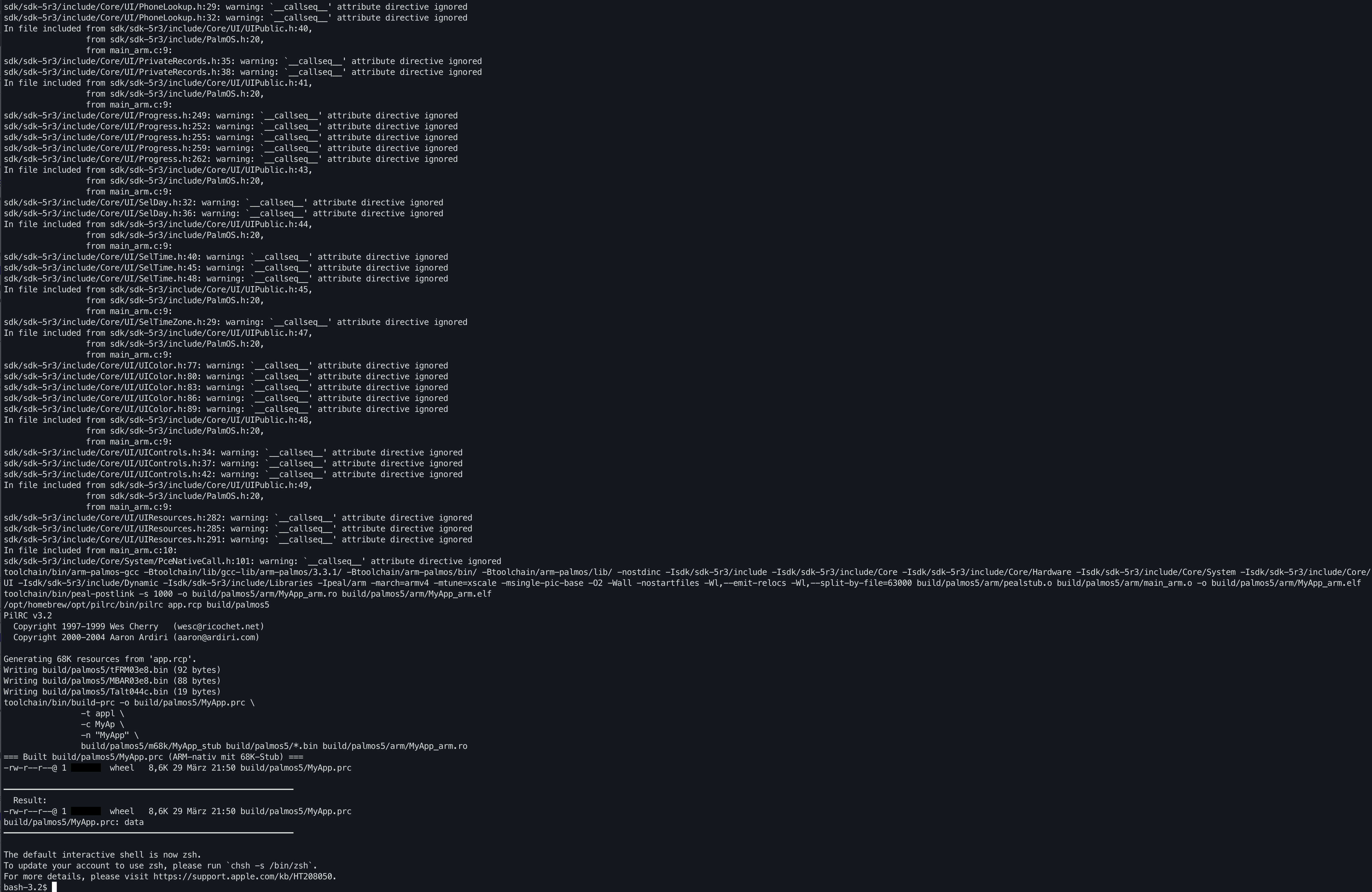
(Fig. 4: Terminal output of make build TARGET=palmos5 for Palm OS 5 (ARM))
The 68K Stub
The stub is compiled with m68k-palmos-gcc and serves as the gateway between Palm OS and your ARM code:
#include <PalmOS.h>
#include "peal.h"
UInt32 PilotMain(UInt16 cmd, void *cmdPBP, UInt16 launchFlags)
{
    PealModule *m;
    void *entry;
    UInt32 result;
    UInt32 cpuType;
    if (cmd != sysAppLaunchCmdNormalLaunch)
        return errNone;
    /* Check if ARM CPU is present */
    FtrGet(sysFileCSystem, sysFtrNumProcessorID, &cpuType);
    if (cpuType == sysFtrNumProcessorx86) {
        FrmCustomAlert(1100, "Simulator not supported.", "", "");
        return errNone;
    }
    if (!sysFtrNumProcessorIsARM(cpuType)) {
        FrmCustomAlert(1100, "ARM processor required.", "", "");
        return errNone;
    }
    /* Load ARM code from 'armc' resources (ID 1000+) */
    m = PealLoadFromResources('armc', 1000, NULL, 0, 0, 0, 0, 0);
    if (!m) {
        FrmCustomAlert(1100, "Could not load ARM code.", "", "");
        return errNone;
    }
    /* Find ARM entry point */
    entry = PealLookupSymbol(m, "AppMain");
    if (!entry) {
        PealUnload(m);
        FrmCustomAlert(1100, "AppMain not found.", "", "");
        return errNone;
    }
    /* Execute ARM code */
    result = PealCall(m, entry, cmdPBP);
    PealUnload(m);
    return result;
}
The stub first checks if an ARM processor is available (gracefully failing on simulators or older 68K-only devices), then uses PEAL to load the ARM binary from armc resources, looks up the AppMain symbol, and calls it.
The PEAL headers (peal.h) and the PEAL loader source (peal.c) are located in the peal/m68k/ directory of the repository. The Makefile automatically finds and compiles them — you do not need to copy them into your project.
The ARM Application
The ARM main application looks similar to a regular Palm OS app, but with one crucial difference: every Palm OS API call must go through a PACE wrapper that handles the byte-swapping (ARM is little-endian, 68K is big-endian) and the transition back to the 68K emulator:
#include <PalmOS.h>
#include <PceNativeCall.h>
#include "pealstub.h"
#include "pace.h"
#define MainForm 1000
static Boolean MainFormHandleEvent(void *eventP)
{
    UInt16 eType;
    void *form;
    eType = ByteSwap16(*(UInt16 *)eventP);
    switch (eType) {
    case 0x1601: /* frmOpenEvent */
        form = pace_FrmGetActiveForm();
        pace_FrmDrawForm(form);
        return 1;
    default:
        break;
    }
    return 0;
}
static void AppEventLoop(void)
{
    UInt8 event[64];
    UInt16 eType;
    do {
        pace_EvtGetEvent(event, (Int32)0x7FFFFFFF);
        eType = ByteSwap16(*(UInt16 *)event);
        if (!pace_SysHandleEvent(event)) {
            UInt16 err = 0;
            if (!pace_MenuHandleEvent(0, event, &err)) {
                if (eType == 0x1600) { /* frmLoadEvent */
                    UInt16 formID = ByteSwap16(
                        *(UInt16 *)((UInt8 *)event + 8));
                    void *form = pace_FrmInitForm(formID);
                    pace_FrmSetActiveForm(form);
                }
                if (eType == 0x1601) { /* frmOpenEvent */
                    MainFormHandleEvent(event);
                } else {
                    pace_FrmDispatchEvent(event);
                }
            }
        }
    } while (eType != 0x16FF); /* appStopEvent */
}
unsigned long AppMain(void *cmdPBP)
{
    pace_FrmGotoForm(MainForm);
    AppEventLoop();
    pace_FrmCloseAllForms();
    return 0;
}
Notice how every Palm OS function is prefixed with pace_. These are inline wrapper functions defined in pace.h that handle the byte-swapping and the call into the 68K emulator.
Understanding PACE Wrappers
The included pace.h provides wrappers for the most commonly used Palm OS APIs: event handling, form management, alerts, drawing, memory allocation, and audio streaming. For example, pace_EvtGetEvent() looks like this:
static inline void pace_EvtGetEvent(void *eventP, Int32 timeout) {
    UInt8 args[8];
    *(UInt32 *)&args[0] = ByteSwap32((UInt32)eventP);
    *(Int32  *)&args[4] = (Int32)ByteSwap32((UInt32)timeout);
    PaceCall(PceNativeTrapNo(sysTrapEvtGetEvent), args, 8);
}
The arguments are packed into a byte array in big-endian format, and the call goes through PceNativeTrapNo() to invoke the 68K trap via the emulator. The pattern is always the same:
- Create a byte buffer large enough for all arguments
- Pack each argument in big-endian order using
ByteSwap16()orByteSwap32() - Call
PaceCall()(returnsUInt32) orPaceCallPtr()(returns a pointer) with the trap number, the argument buffer, and its size in bytes
If you need a Palm OS API that is not in pace.h, you can write your own wrapper following this pattern. Look up the function signature in the SDK headers (e.g., sdk/sdk-5r3/include/Core/System/), then:
/* Example: wrapping DmNumDatabases(cardNo) -> UInt16 */
static inline UInt16 pace_DmNumDatabases(UInt16 cardNo) {
    UInt16 arg = ByteSwap16(cardNo);
    return (UInt16)PaceCall(PceNativeTrapNo(sysTrapDmNumDatabases),
                            &arg, 2);
}
/* Example: wrapping a function that returns a pointer */
static inline void *pace_DmGetDatabase(UInt16 cardNo, UInt16 index) {
    UInt8 args[4];
    *(UInt16 *)&args[0] = ByteSwap16(cardNo);
    *(UInt16 *)&args[2] = ByteSwap16(index);
    return PaceCallPtr(PceNativeTrapNo(sysTrapDmGetDatabase), args, 4);
}
The trap names (sysTrap...) are defined in the SDK header Core/System/SysTraps.h. Use PaceCall() for functions that return integers or void, and PaceCallPtr() for functions that return pointers.
The 7-Step Build Pipeline
Building a Palm OS 5 application requires a more complex pipeline than Palm OS 4. The dual-target Makefile handles all of this with a single command:
make build TARGET=palmos5
Behind the scenes, seven steps are executed:
- ARM compilation:
arm-palmos-gcccompiles your.csource files into ARM.oobject files, with-march=armv4 -mtune=xscaleoptimization flags. - ARM linking:
arm-palmos-gcclinks the object files into an ARM ELF binary.pealstub.omust be linked first! The linker uses--emit-relocs(for runtime relocation) and--split-by-file=63000(to manage section sizes within Palm OS resource limits). - Postlinking:
peal-postlinkconverts the ARM ELF binary into a.rofile containingarmcresources. This is the step that makes ARM code loadable by Palm OS. - 68K compilation:
m68k-palmos-gcccompiles the 68K stub and the PEAL loader (frompeal/m68k/peal.c). - 68K linking:
m68k-palmos-gcclinks the stub and loader into a 68K ELF binary. - Resource compilation:
pilrccompiles the.rcpfile into.binresources. - PRC assembly:
build-prcpackages the 68K ELF,.binresources, and.roARM resources into the final.prcfile.
The result is a single .prc file that contains both the 68K stub and the native ARM binary.
The Dual-Target Makefile
One of the nicest features of this toolchain is the dual-target Makefile template. The same Makefile supports both Palm OS 4 and Palm OS 5 builds, selected by the TARGET variable:
# Build for Palm OS 4 (pure 68K) - this is the default
make build
# Build for Palm OS 5 (ARM native with 68K stub)
make build TARGET=palmos5
# Clean build artifacts
make clean
# Clean and rebuild
make rebuild
The Makefile auto-detects the toolchain location relative to your project directory:
# Auto-detect: project sits inside the toolchain folder (e.g. palmdev-macos-arm-v1/myapp/)
REPO_DIR      := $(shell cd .. && pwd)
TOOLCHAIN_DIR = $(REPO_DIR)/toolchain
PEAL_DIR      = $(REPO_DIR)/peal
SDK4_DIR      = $(REPO_DIR)/sdk/sdk-4
SDK5_DIR      = $(REPO_DIR)/sdk/sdk-5r3
This means your project directory must be one level inside the unpacked toolchain folder. For example: ~/palmdev-macos-arm-v1/myapp/. If you need a different layout, just change REPO_DIR to point to the toolchain root.
peal-postlink: The Bridge Between ARM and Palm OS
The peal-postlink tool is a critical piece of the Palm OS 5 build pipeline. It takes an ARM ELF binary (the output of arm-palmos-gcc) and converts it into Palm OS armc resources that can be loaded at runtime by the PEAL loader.
It performs several operations:
- Parses ELF headers, program headers, and section headers
- Extracts code and read-only data sections
- Strips the symbol table (keeping only global symbols needed for lookups, like
AppMain) - Processes relocations, converting absolute addresses to position-independent form
- Generates a Global Offset Table (GOT) for position-independent code
- Outputs the result as Palm OS resource records (starting at ID 1000)
The tool is written in about 2,800 lines of C++ and is included as a pre-built binary for macOS ARM. The source code is available in the peal/postlink/ directory if you need to rebuild it:
c++ -O2 -W -Wall image.cc postlinker.cc relocation.cc \
    section.cc symbol.cc symboltable.cc complain.cc -o peal-postlink
Testing Your Application
On a Real Palm Device
Install the .prc file via USB with pilot-link. Start the command first, then press the HotSync button on the Palm:
pilot-xfer -p usb: -i build/HelloWorld.prc
More comfortable: my HotSync app for macOS sits in the menu bar and installs every .prc file you double-click on the next HotSync.
Using POSE (Palm OS Emulator)
POSE is a 32-bit application and does not run natively on macOS. However, it can be run on macOS (including Apple Silicon) via Docker. For a detailed guide on setting this up, see Running POSE on macOS with Docker.
Once POSE is running, you can drag and drop the .prc file onto the emulator window to install it. Note that POSE emulates a 68K processor only — Palm OS 5 ARM applications will show the "ARM processor required" error message in POSE, which is expected. To test ARM applications, you need a real Palm OS 5 device or an emulator that supports ARM, like the Palm OS Simulator (which requires a separate setup).
Troubleshooting
"cannot be opened because the developer cannot be verified"
macOS quarantines downloaded binaries by default. Remove the quarantine flag from the toolchain:
xattr -r -d com.apple.quarantine toolchain/ tools/ peal/
Compilation errors with system headers
Make sure the -nostdinc flag is included in your CFLAGS (it is in the template Makefile). This prevents macOS system headers from conflicting with the Palm OS headers. Without it, the compiler mixes modern macOS types with Palm OS types and produces confusing errors.
Linker errors about missing libraries
Check that GCC_EXEC_PREFIX is set correctly in your Makefile. This environment variable tells GCC where to find its internal support files. The template Makefile sets it automatically:
export GCC_EXEC_PREFIX = $(TOOLCHAIN_DIR)/lib/gcc-lib/
"pilrc: command not found" or wrong pilrc path
The Makefile looks for pilrc in three locations, in order: tools/pilrc (bundled in the zip), /opt/homebrew/opt/pilrc/bin/pilrc (Homebrew), and finally in your PATH. If you moved the toolchain or pilrc is elsewhere, set the PILRC variable in your Makefile manually.
Credits
This toolchain builds on the work of many people in the Palm OS community:
- savaughn — prc-tools macOS ARM builds and the palmdev-macos project
- jichu4n — Palm OS SDK packaging, Homebrew tap for pilrc and pilot-link
- Greg Parker — PEAL (Palm Executive ARM Loader), originally from the TCPMP project
- The prc-tools community — Maintaining the GCC toolchain for Palm OS since the 1990s
- Palm, Inc. — The original Palm OS SDK and documentation
The fact that we can still build native applications for devices from the early 2000s, on a modern Apple Silicon Mac, is a testament to the durability of open-source tools and the dedication of the retro computing community.
Comments on "Building Palm OS Applications on macOS (Apple Silicon)"
Comments are moderated before publication. Only substantive and constructive comments will be approved.